Start with your website inventory.
Print QR labels that connect shoppers to vehicle listings, and keep track of where vehicles are parked. No DMS connection required.
Receive vehicles, print labels, inspect deliveries and audit your lot. One workspace for the people handling your inventory.
Inspect a delivery. Find a vehicle. Walk the lot together.
Explore inspections, labels, vehicle locations, inventory audits and one-click PDI.

Your dealership manages each employee’s access.
Select a function to see how it works.
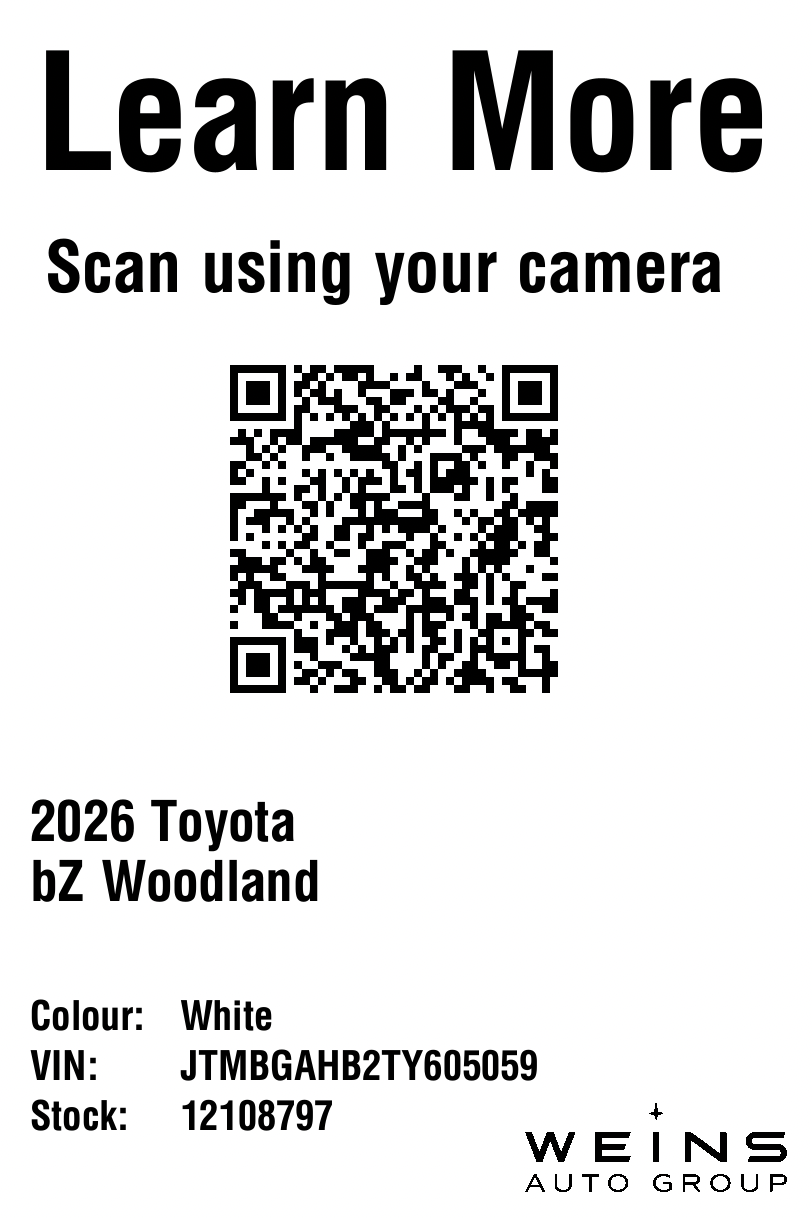
Bring incoming vehicles into one view, assign stock numbers and prepare labels before arrival. Your team can see what is expected and what has already been received, without piecing together separate lists. Use supported shipping feeds, enter a VIN in the portal or scan several vehicles in one session with DriveLink Ops.
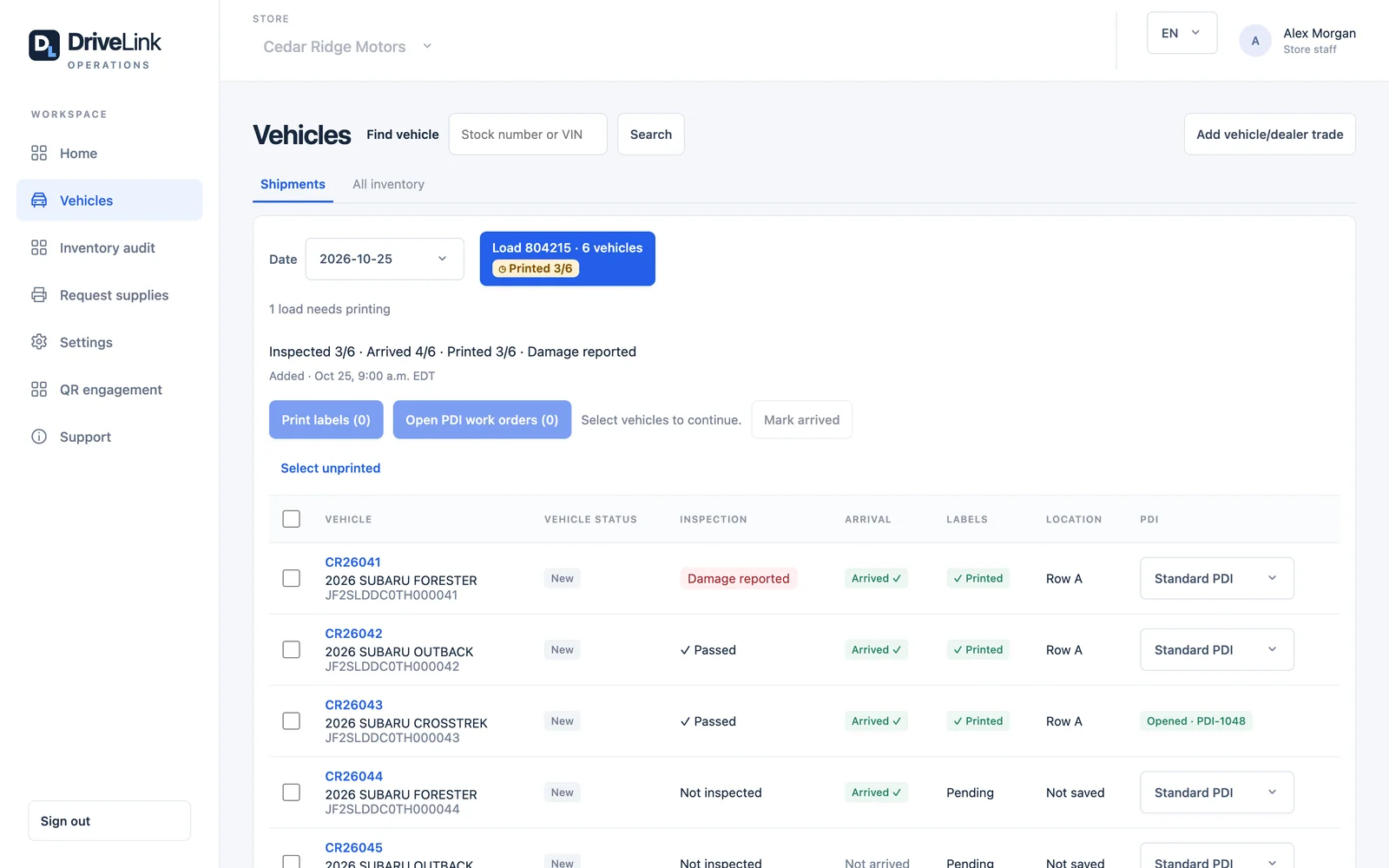
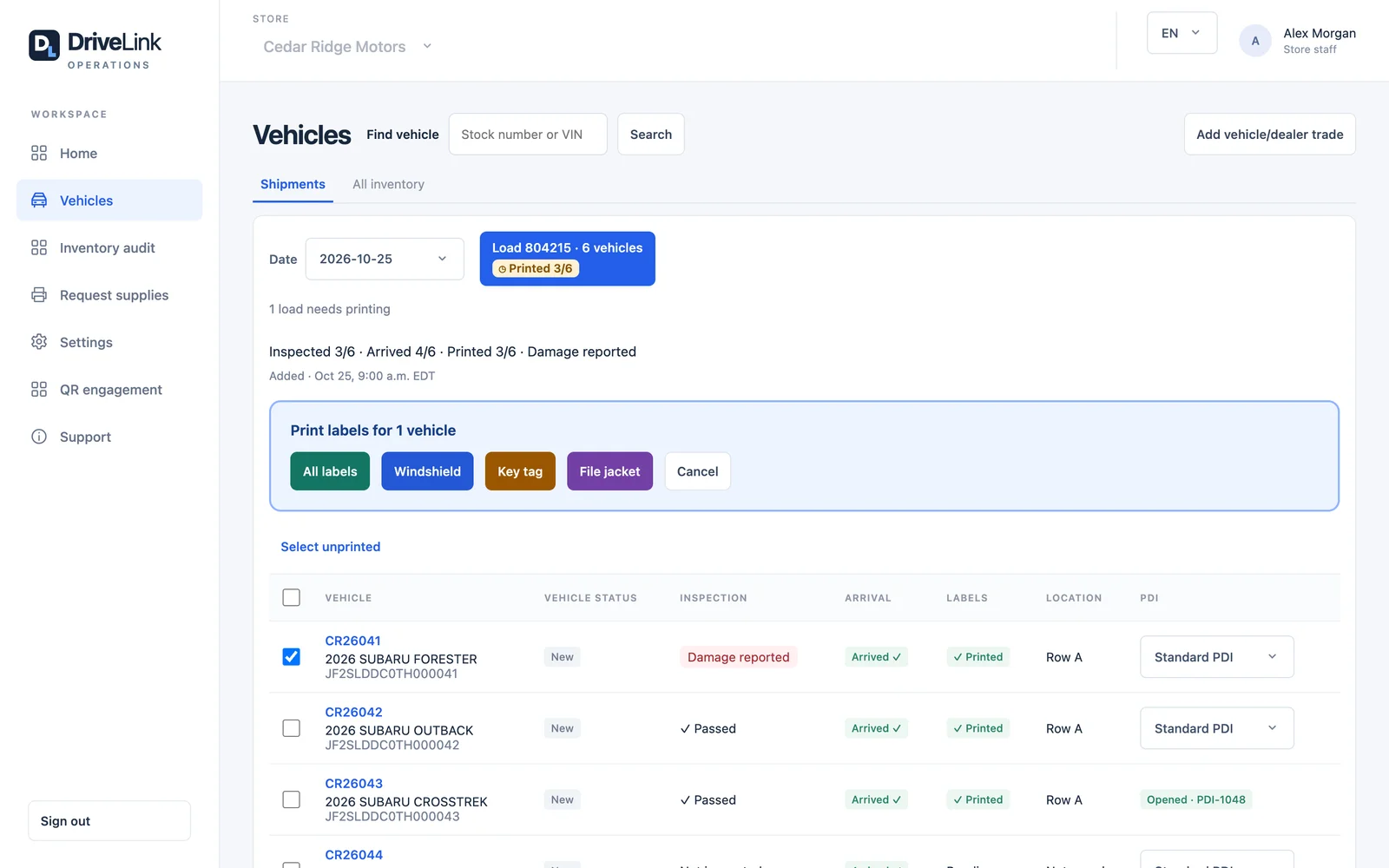
Print windshield QR labels that connect shoppers to the vehicle on your website. The link stays the same when the listing becomes available or the price changes. Prepare individual labels or an entire shipment, with key-tag and file-jacket formats for your staff. Print from the portal or a compatible network-connected Zebra printer on the lot.
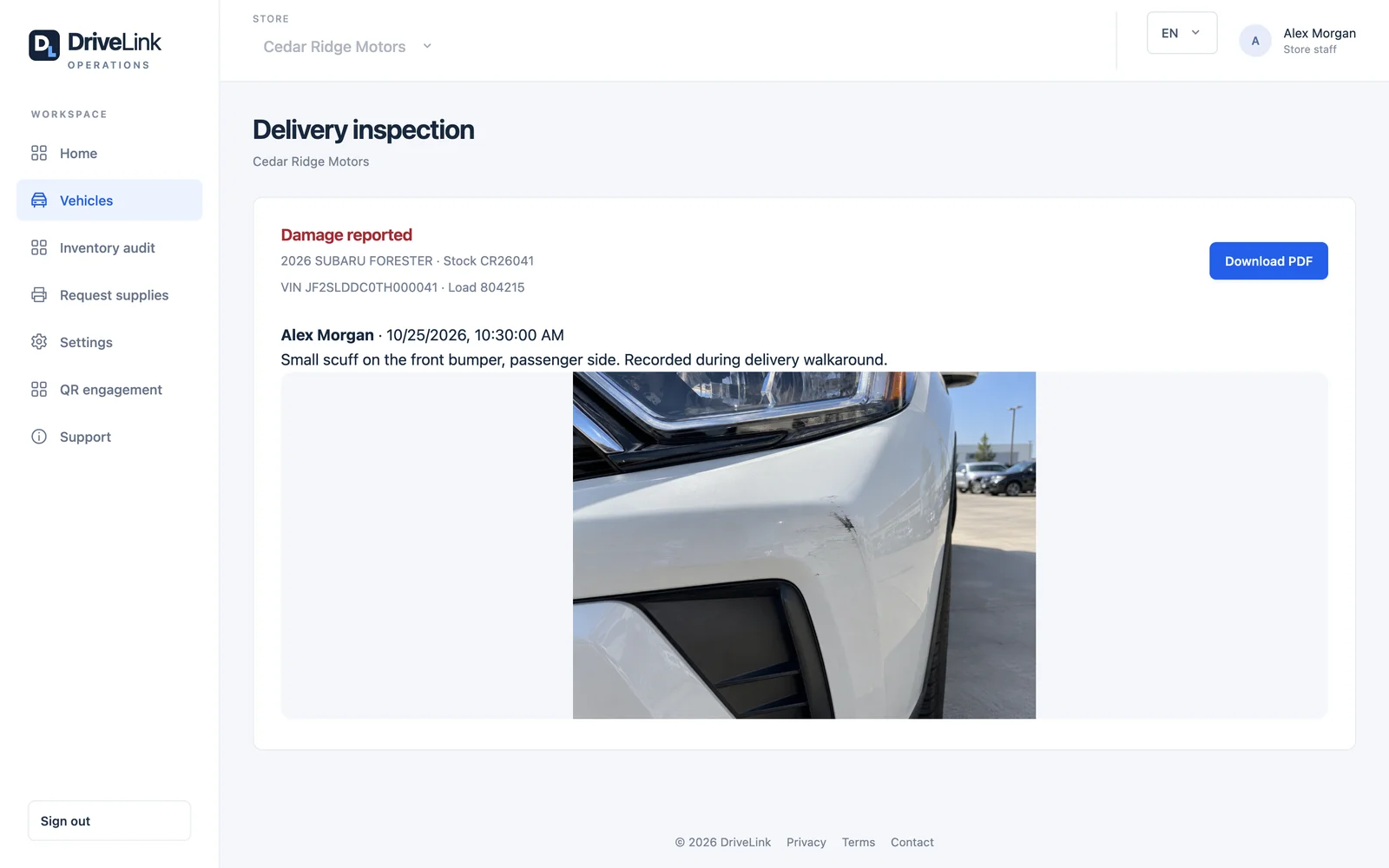
Check a delivery in DriveLink Ops and record the result while the vehicle is in front of you. Add damage notes and photos so the details travel with the record, not in a separate message thread. The portal keeps the inspection available for review, with a PDF report to download and failed-inspection reports sent to your chosen recipients.
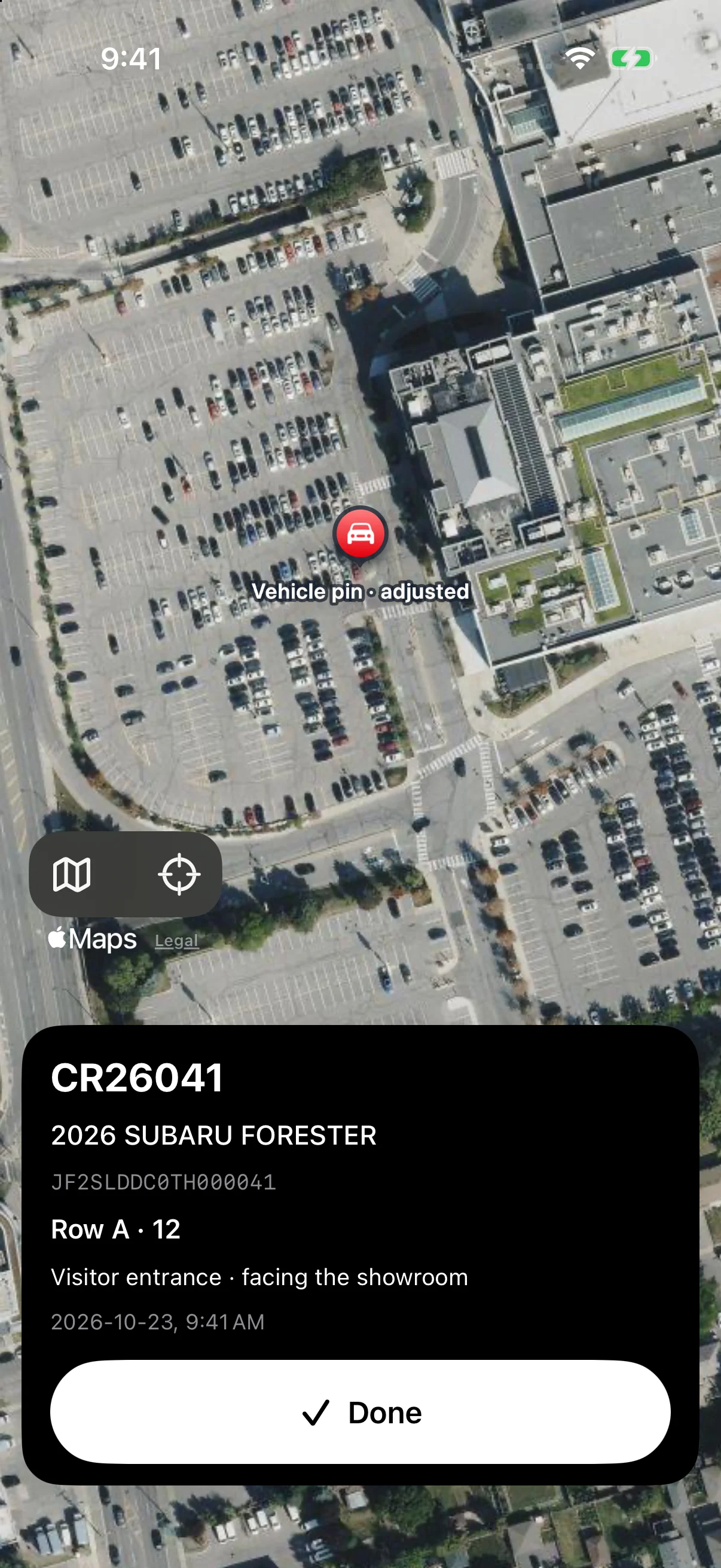
Scan a VIN or DriveLink label and save the vehicle’s location from the app. Operations identifies the named parking area or row from your dealership’s configured boundaries. Colleagues can look up the saved pin and notes instead of searching the whole lot. A vehicle can be parked before it appears in inventory, with its location retained when the record arrives.
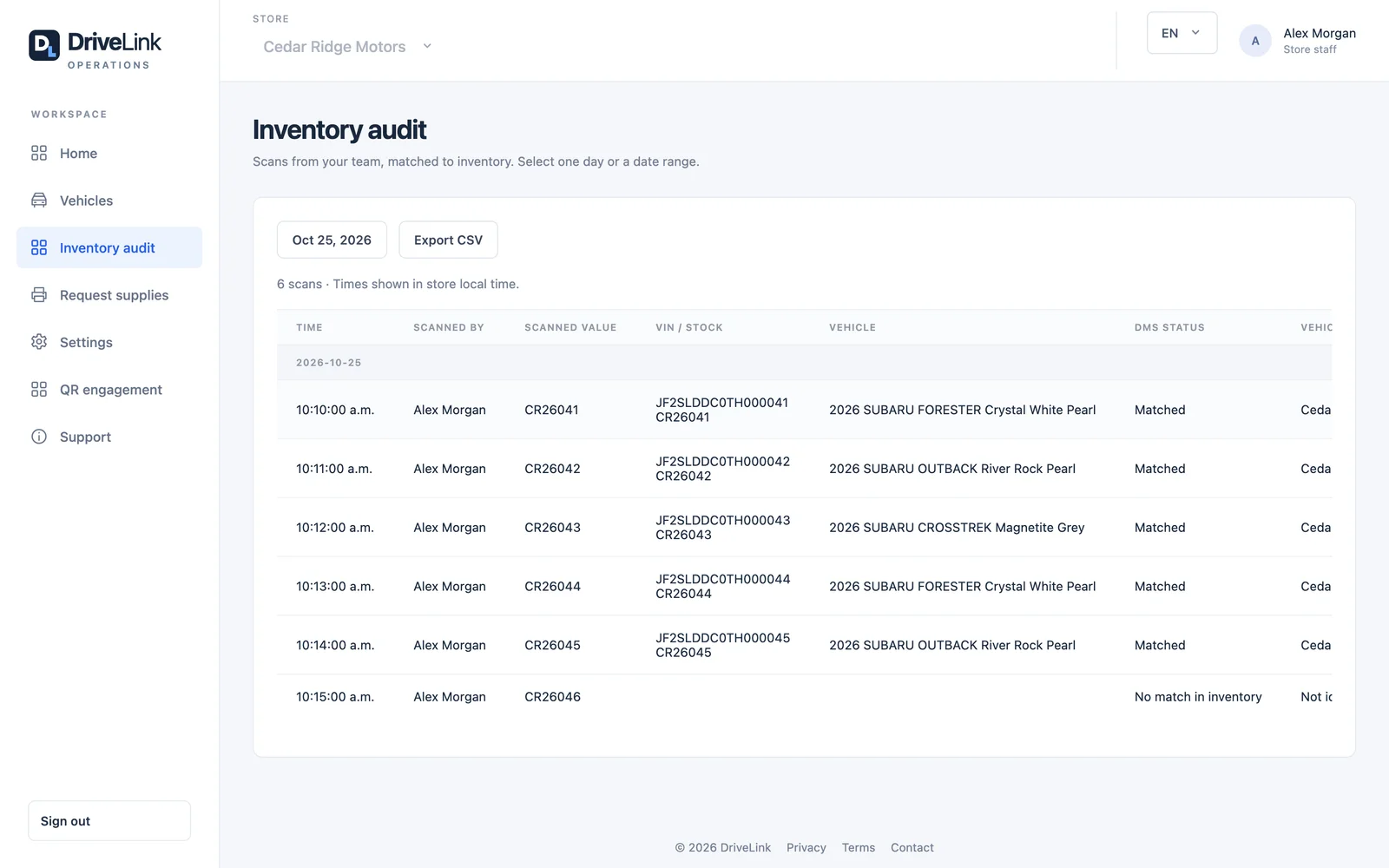
Let several employees scan vehicles into the same audit using DriveLink labels or VIN recognition. Review the results in the portal against connected inventory, including vehicles that do not match. Qualifying audit scans also update saved vehicle locations. Each scan records who scanned it and when, with GPS when available. Review a single day or a date range, then export one CSV for the team.
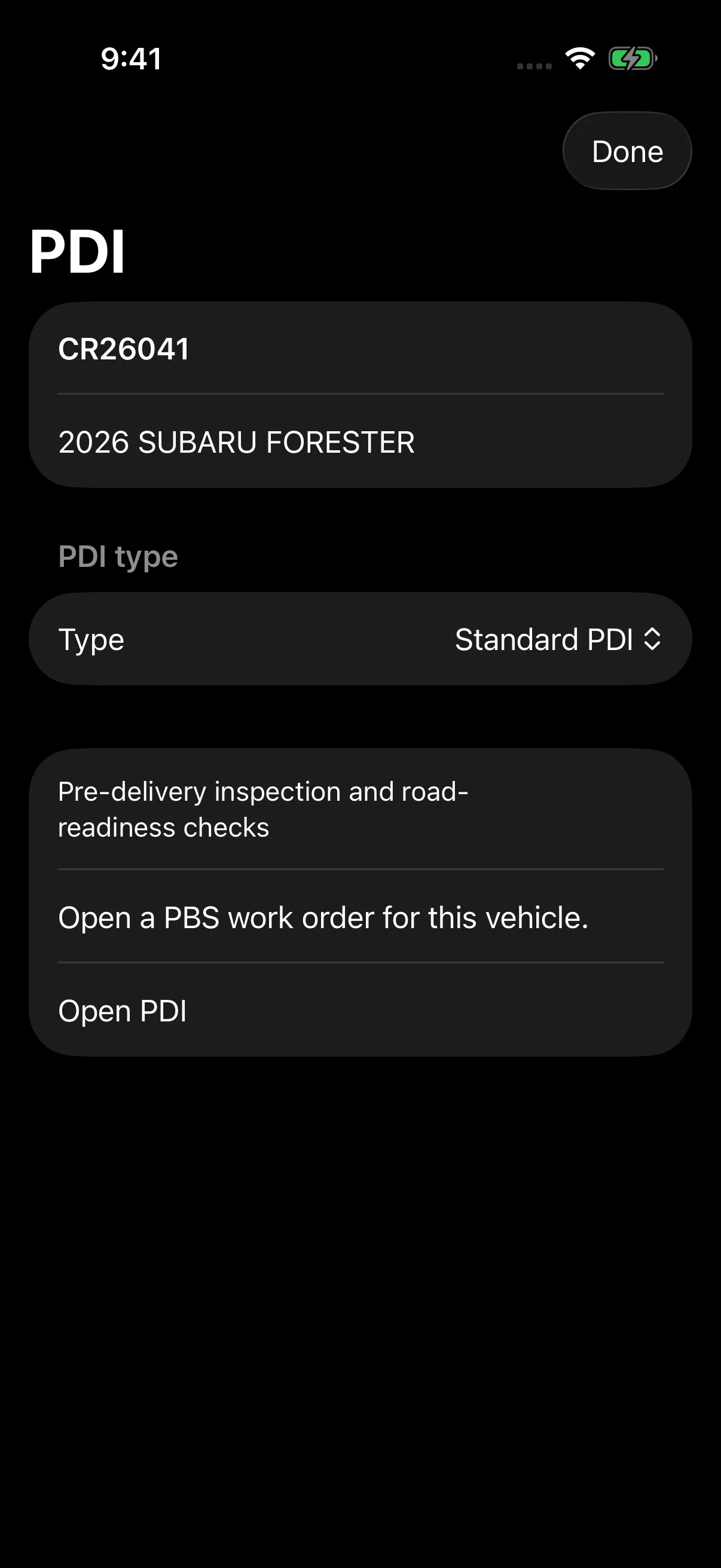
Open PDI from the vehicle you are already working with. Choose the type your dealership uses and keep the next step connected to that vehicle.
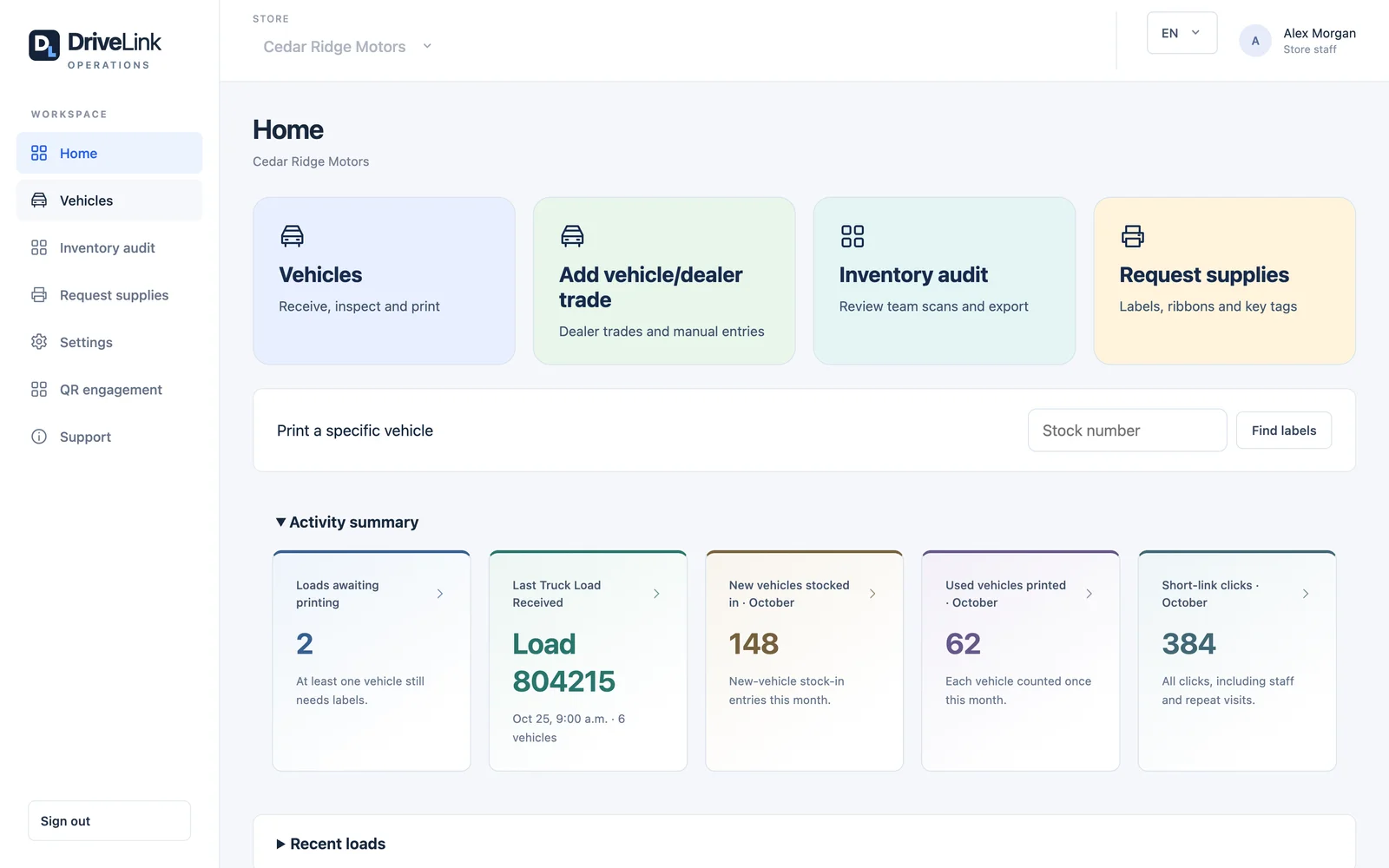
Prepare labels for a shipment, review inspection reports and find saved vehicle locations. The portal keeps the office connected to the work happening outside.
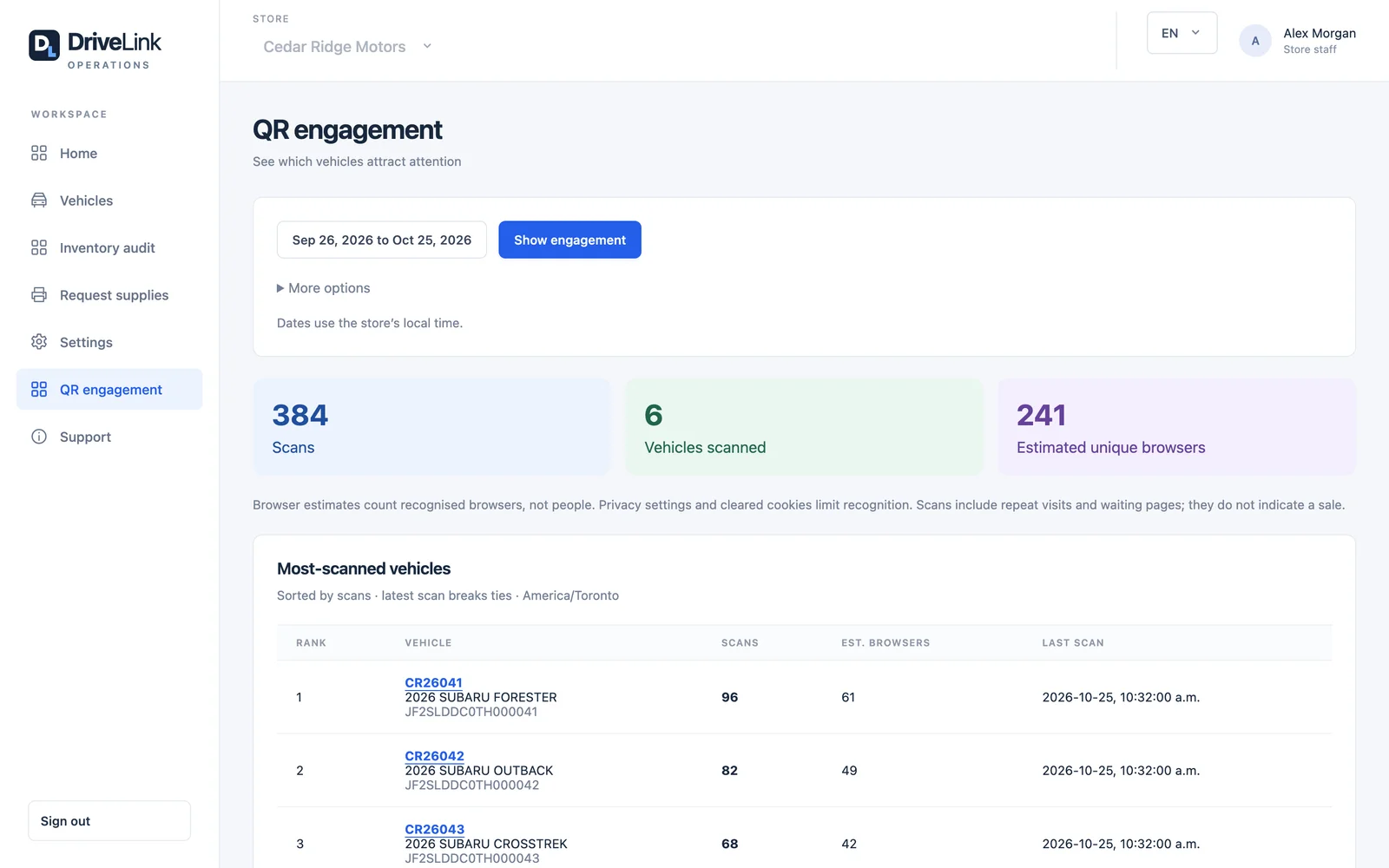
Compare scan activity by vehicle and date. See repeat activity and estimated unique browsers—not identified shoppers or attributed sales.
Print QR labels that connect shoppers to vehicle listings, and keep track of where vehicles are parked. No DMS connection required.
Bring in shipments, assign stock numbers and prepare labels. Connect your DMS for supported inventory updates, or use standalone stock numbering.
Parking is included with either setup. Printing never requires the app or a completed inspection. Available capabilities depend on your dealership’s connected systems and configuration.